

This guide to Google Search Console for beginners is for owners who have never peeked at their own data, and by the end you will know how to set the tool up, read the numbers that matter, and catch the pages quietly letting you down. Think of it as a free health check for your website, minus the waiting room.
Setting it up and proving the site is yours
Before Google hands over its data, Google wants one thing: proof that the website is really yours. Fair enough. Without that check, any stranger could sign up and read your numbers, which is a bit like a stranger strolling into your shop to flip through your sales book.
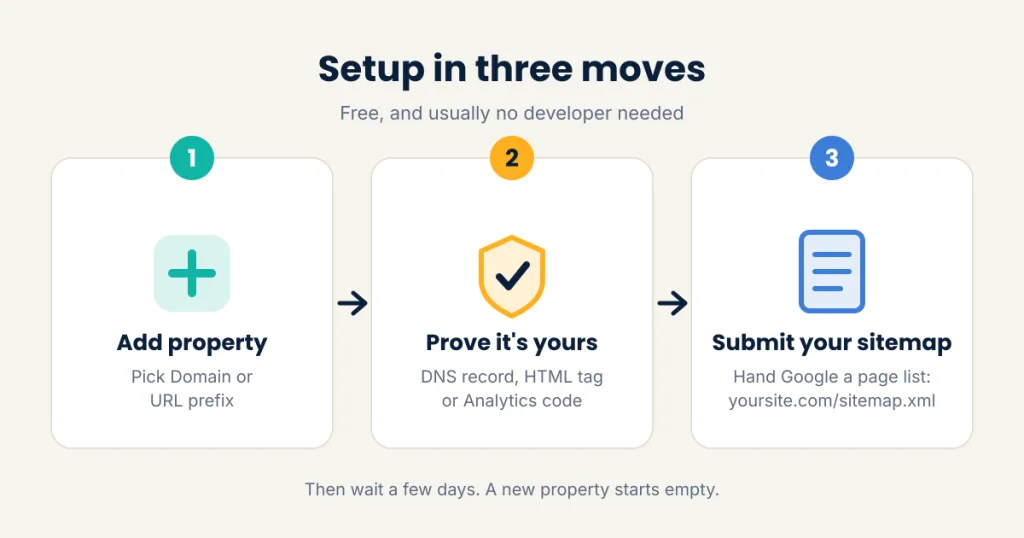
Google Search Console is a free tool for seeing how your site performs in search. Sign in with a Google account at search.google.com/search-console, click Add property, and pick one of two options:
- Domain: covers every version of your site (with or without www, http or https). It is the tidier choice, but you will need to add a short DNS record where you bought your domain.
- URL prefix: covers one exact address. It is easier, because you can prove ownership with an HTML file, a meta tag, or your existing Google Analytics or Tag Manager code.
Follow the on-screen steps for whichever you choose. On WordPress, an SEO plugin can place the verification tag for you. If someone else manages your domain, forward them Google's instructions. It is a two-minute job for the right person, and they will not judge you.
Once you are verified, open Sitemaps and submit your sitemap address, usually yoursite.com/sitemap.xml. That is simply a list of your pages, handed to Google on a plate. Then wait a few days. A new property starts empty, like a notebook on the first day of school, and it fills up as Google collects data.
The four numbers that matter: clicks, impressions, position, pages
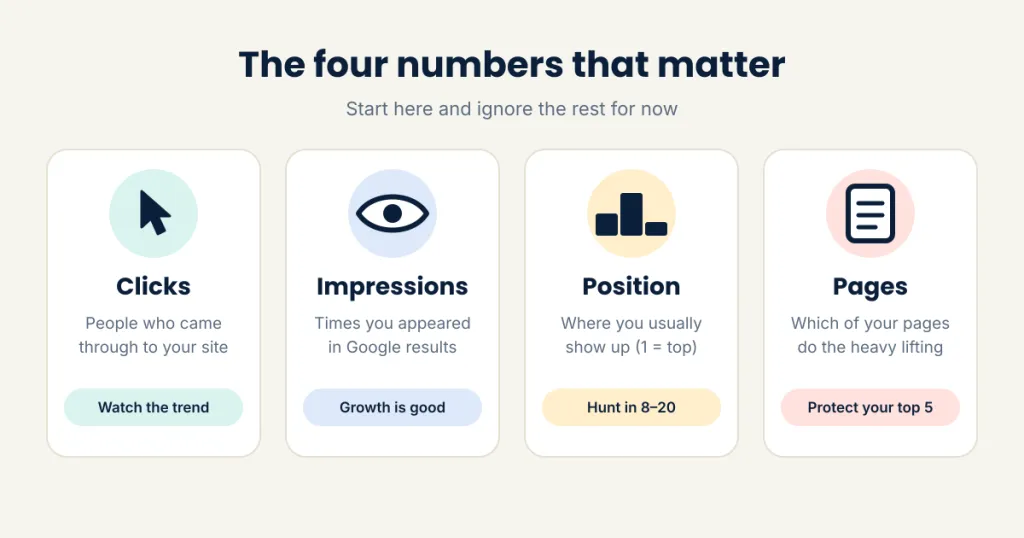
Open Performance in the left menu. You will see a chart, and the temptation is to admire the line and close the tab. Resist. Four numbers on this screen tell you whether your site is pulling its weight.
| Number | In plain English | What to watch |
|---|---|---|
| Clicks | People who clicked through to your site from Google | The trend over weeks, not one lucky day |
| Impressions | Times your page appeared in results, clicked or not | Growth means Google is showing you for more searches |
| Average position | Where you usually appear (1 is the top of page one, 11 is the top of page two) | Phrases sitting between 8 and 20 are your best opportunities |
| Pages | Which of your pages earn the clicks and impressions | A few star pages usually do most of the work |
Tick the boxes for Average CTR and Average position so all four show together. CTR is the click-through rate: clicks divided by impressions. If a page is seen 1,000 times and clicked 30 times, its CTR is 3%.
Now read the numbers like a story:
- Lots of impressions, few clicks: people see you and scroll straight past. Your page title and description need more charm.
- Few impressions, poor position: Google does not yet see you as the best answer. The content needs work.
- Steady impressions, rising position: it is working. Resist the urge to fiddle, and go make some tea.
Two warnings will save you from false alarms. Daily numbers bounce around like a danfo on a bad road, so compare the last three months with the previous three instead. And average position blends every search for a page: the same page can sit at position 3 for one phrase and position 40 for another. Click into a page or phrase before you panic.
Finally, click the Pages tab under the chart and sort by clicks. Write down your top five. These are the stars of your site, so do not delete or redesign them on a whim.
Finding the phrases you nearly rank for
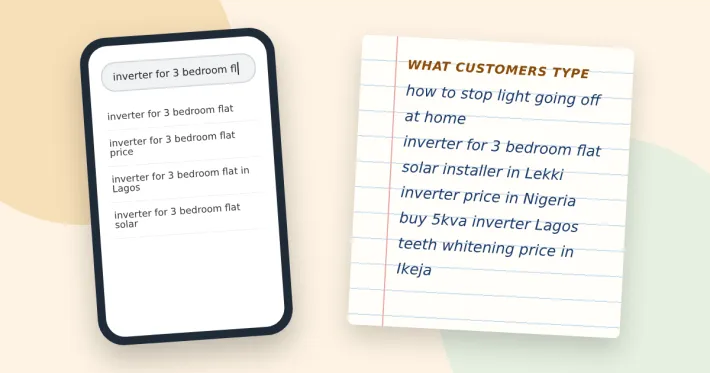
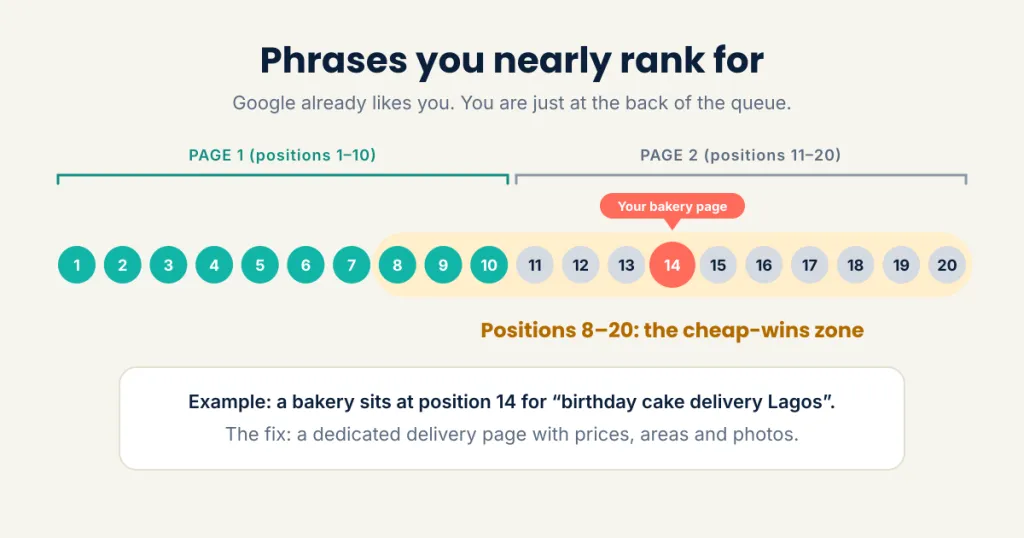
Here is the most useful trick in Search Console, and it costs nothing. The tool shows the exact words people typed into Google when your site appeared, including phrases you never planned for. The ones you nearly rank for are cheap wins, because Google already thinks you are relevant. They are just standing at the back of the queue. Remember the old joke: the best place to hide a secret is page two of Google.
Here is how to find them:
- Open Performance and set the date range to the last three months.
- Make sure Average position is ticked, then scroll to the table under the chart. The Queries tab lists the phrases people used.
- Click the Position column header to sort. Look for phrases between positions 8 and 20, which is the bottom of page one and the whole of page two.
- Keep only phrases with a fair number of impressions that match something you really sell or do. Ignore the rest.
- Click a phrase, then open the Pages tab to see which of your pages Google is showing for it.
Now decide what to do. If a page already covers the phrase, make it better: add a section that answers the question fully, put the phrase in a heading, and sharpen the page title. If no page covers it, write one. If a phrase gets plenty of impressions but almost no clicks, rewrite the title and description so they sound like the answer someone is hoping for.
Picture a Lagos bakery that spots itself at position 14 for "birthday cake delivery Lagos" but only has a general cakes page. The fix is a dedicated delivery page with prices, delivery areas and mouth-watering photos. A few weeks later, the owner checks the same phrase to see if it moved.
Do not chase every phrase. Choose two or three a month, make real improvements, and give Google time to notice. Changes take weeks, not days, so be patient.
Spotting pages Google cannot read
A page Google cannot read is like a shop with a beautiful window display and a locked door. It can be brilliant, and nobody will ever find it. Search Console tells you when this is happening, and most owners never check.
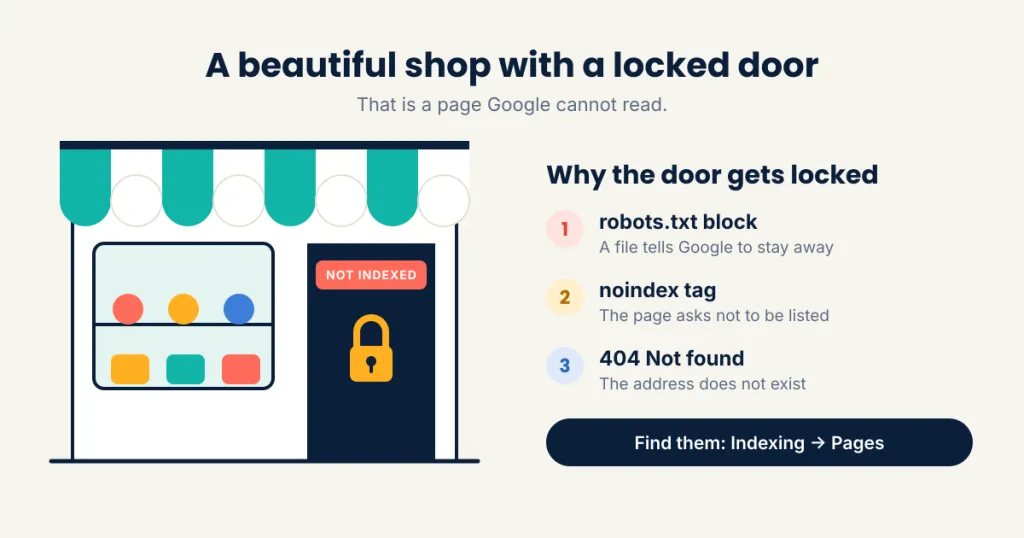
Open Pages under the Indexing heading in the left menu. Your pages are split into two groups: indexed (Google has stored them and can show them) and not indexed. Some pages should stay out, such as login or thank-you pages. The ones to worry about are pages you want customers to find.
Scroll down to the list of reasons. These are the ones you will meet most often:
| Reason shown | Plain meaning | What to do |
|---|---|---|
| Not found (404) | The page address does not exist | Restore the page, or redirect the old address to a relevant one |
| Blocked by robots.txt | A file on your site tells Google to stay away | Ask your developer to remove the block if the page should be public |
| Excluded by noindex tag | The page asks Google not to list it | Remove the tag if the page should appear in search |
| Crawled, currently not indexed | Google looked and decided to pass | Make the page more useful and unique, and link to it from other pages |
| Discovered, currently not indexed | Google knows it exists but has not visited yet | Link to it from your menu or key pages, and be patient |
To check a single page, paste its address into the search bar at the top. The URL Inspection tool tells you whether the page is on Google and, if not, why. After fixing the problem, click Request indexing. It is a polite request, not an order, so allow a few days.
One classic surprise: a site built or redesigned with the "discourage search engines" setting left switched on. Yes, that happens a lot. If your important pages show as excluded and you cannot see why, ask whoever built the site to check that setting first.
A ten-minute monthly routine
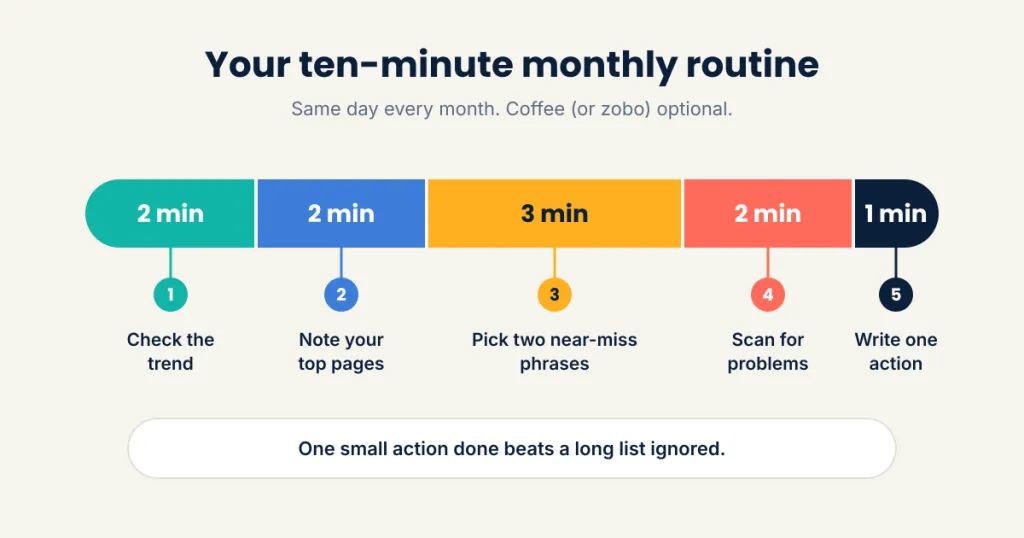
Search Console only helps if you open it, so pick one fixed day each month, such as the first Monday. Grab a cup of coffee (or zobo) and work through this list:
- Check the trend (2 minutes). In Performance, compare the last three months with the previous three. Are clicks and impressions up, flat or down?
- Note your top pages (2 minutes). Open the Pages tab, sort by clicks, and jot down the top five. If one has dropped sharply, investigate it first.
- Pick two near-miss phrases (3 minutes). Sort Queries by position and choose two phrases between positions 8 and 20 that fit your business. Write down the page that should rank for each.
- Scan for problems (2 minutes). Open the indexing Pages report. If the number of pages not indexed has jumped, or an important page is in the list, inspect it.
Keep a simple note or spreadsheet with the date, your clicks and impressions, and what you changed. After three or four months, you will have your own record of what works.
Search Console tells you what happened. Knowing what to do about it, and linking it to enquiries and sales, is where most owners want a hand. If you would rather have someone set this up and report on it for you, our Data & Analytics service does exactly that.
Frequently asked questions
Is Google Search Console free?
Yes, completely. All you need is a Google account and a website you can prove you own.
How long until I see data?
Some numbers appear within a few days of verifying your site. Real trends take a few weeks, so give it a month before judging anything.
What is the difference between Search Console and Google Analytics?
Search Console shows how people find you on Google: phrases, positions and clicks. Google Analytics shows what visitors do after they arrive. One covers the road to your shop, the other covers what happens inside it. You want both.
Why do my clicks and impressions change from day to day?
Searches rise and fall with the day of the week, the season and the news. Judge by three-month trends, not by one dramatic Tuesday.
Does Search Console improve my ranking by itself?
No. It is a measuring tool, not a magic wand. It shows you what to fix, and your ranking improves when you act on it.
My new page is not showing on Google. What should I do?
Paste its address into the URL Inspection tool. If it is not on Google, request indexing and make sure other pages on your site link to it. Then allow a few days.