



What a relief! We’ve just successfully resolved a major website migration challenge for a brand’s website, restoring images across over 1,000 pages. This wasn’t a standard migration; it required a thorough examination of the challenges of media handling🙂.
After the brand moved to a new host, they encountered widespread broken image links (404 errors). The culprit was a unique previous setup: media was offloaded to an AWS S3 bucket, but crucially, it lacked the standard /uploads/ path structure within the bucket. This meant image URLs in the WordPress database were referencing s3://[bucket-name]/year/month/image.jpg instead of the expected https://[brand’s-website-URL]/wp-content/uploads/year/month/image.jpg on the new server. This disconnect prevented the new host from locating the assets.
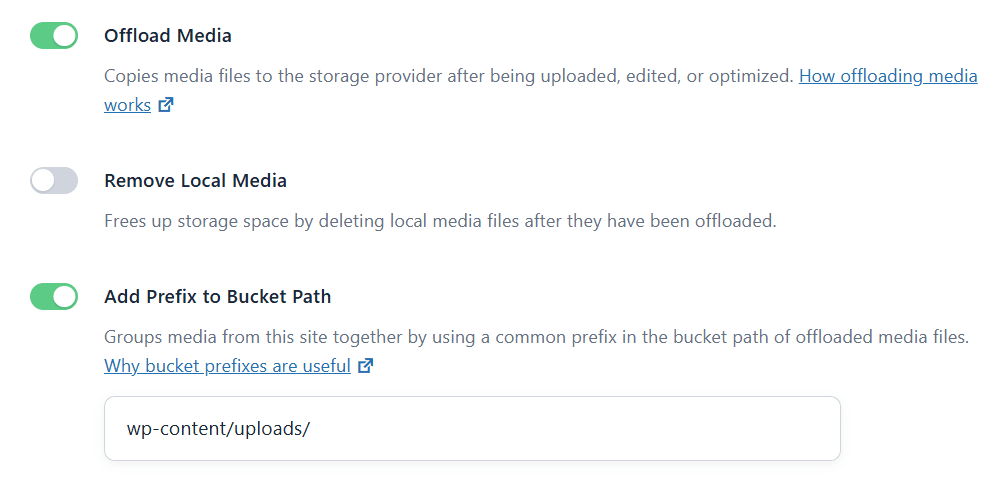
The solution wasn’t a quick fix, but a meticulous, multi-stage approach:
How I fixed the Broken Images from S3 and WP Offload Media.
1. Precision Diagnosis of Legacy Paths: The first step involved meticulously identifying the exact, non-standard S3 URL patterns hardcoded within the WordPress database. This was critical for the subsequent search-and-replace operation.
2. Efficient AWS S3 Data Retrieval: Leveraging Cyberduck, given its S3 integration capabilities, I connected directly to the S3 bucket. The challenge was downloading all nested year/month folders and their contents while preserving the directory structure.
3. Strategic Local File Integration: Once downloaded, these assets were carefully uploaded and merged into the standard wp-content/uploads/ directory on the new host using FileZilla. This ensured no existing media was overwritten while integrating the previously offloaded images.
4. Database URL Remediation (Post-Migration): While the images displayed after file transfer (likely due to the AWS Offload Media plugin’s fallback or a broken S3 connection forcing local lookup), the definitive step involved a database-wide search-and-replace. This operation updated all remaining s3://[bucket-name]/ URLs within the wp_posts and wp_postmeta tables to the correct https://[brand’s-website-URL]/wp-content/uploads/ path, ensuring long-term stability and optimal SEO.
Seeing those images correctly load from the brand’s website URL again is incredibly satisfying! This entire process was a huge win for user experience, significantly boosted image SEO signals, and reinforced the critical need for meticulous planning and technical execution in all website migrations.
Have you faced any tricky migration issues involving non-standard cloud storage setups? Share your insights and tips in the comments!

I tried it, and it worked. Impressive how people come up with solutions to problems like this